Complete Guide to React Native Building a Feature Rich Todo App

Complete Guide to React Native Building a Feature Rich Todo App

15 March 202515 min readMobile Development

After working in the React ecosystem for a long time, I decided to venture into mobile app development. React Native was particularly appealing because it offered the ability to develop native mobile applications using my existing JavaScript and React knowledge. In this post, I'll detail my experience building a feature-rich Todo app as my first React Native project.

What is React Native?

React Native is a framework developed by Facebook (now Meta) that allows you to create mobile applications using JavaScript and React. Unlike other frameworks that use WebViews, React Native transforms your JavaScript code into native components for iOS and Android. This means your applications look, feel, and perform as if they were written in the platform's native language.

The advantages of React Native include:

  • Learn once, write anywhere: You can use your existing React knowledge
  • Native performance: Direct access to native platform APIs
  • Hot reloading: See changes instantly during development
  • Large community: Extensive libraries and support
  • Cross-platform: Build for iOS and Android from a single codebase

Setting Up the Development Environment

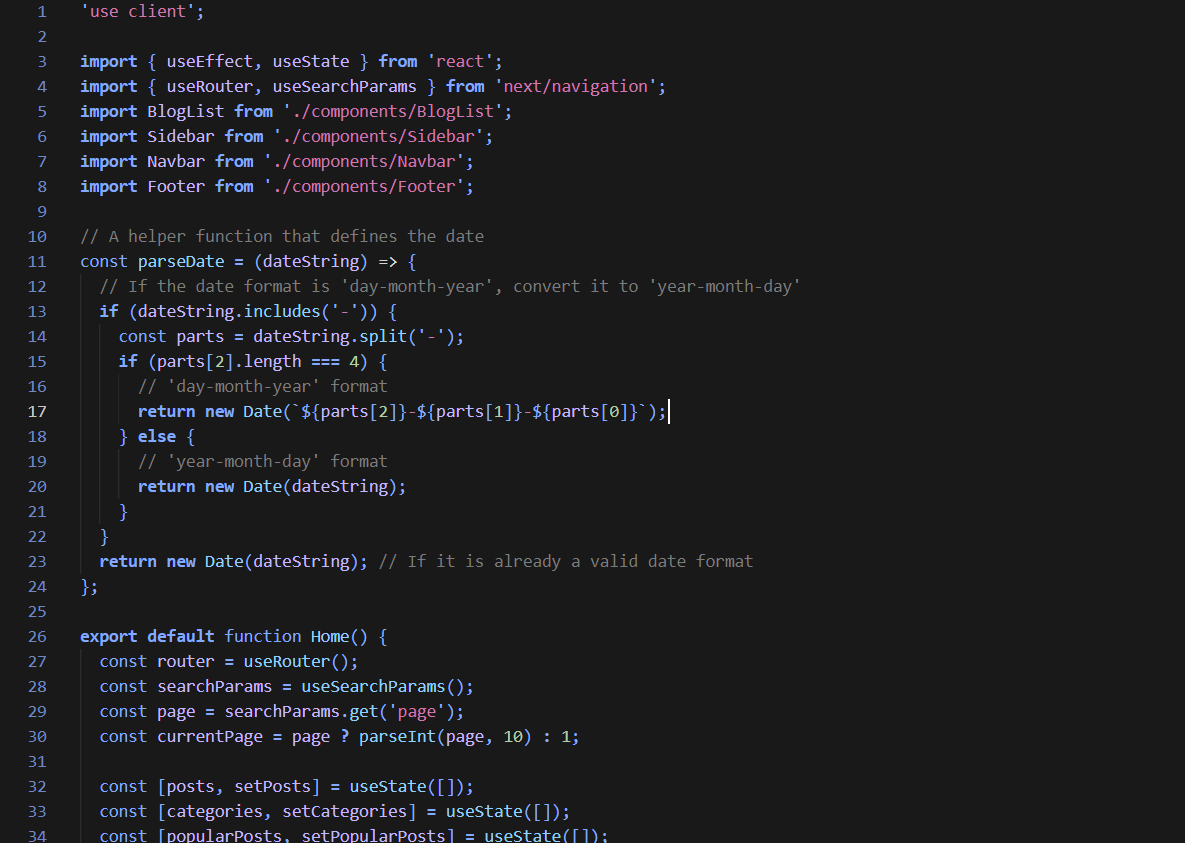
To get started with React Native, you first need to set up your development environment. I chose to use Expo, which simplifies the setup process and provides a set of tools and services for React Native development.

Here's how I set up my environment:

// Install Expo CLI globally
npm install -g expo-cli

// Create a new project
expo init TodoApp

// Choose a template (I selected the blank template)

// Navigate to the project directory
cd TodoApp

// Start the development server
npm start

With Expo, I could preview the app directly on my physical device by scanning a QR code, which made testing much easier.

Project Structure and Navigation

For my Todo app, I implemented a more complex structure with multiple screens and navigation:

// App.js
import React from 'react';
import { NavigationContainer } from '@react-navigation/native';
import { createNativeStackNavigator } from '@react-navigation/native-stack';
import { createBottomTabNavigator } from '@react-navigation/bottom-tabs';
import { ThemeProvider, useTheme } from './contexts/ThemeContext';
import HomeScreen from './screens/HomeScreen';
import SettingsScreen from './screens/SettingsScreen';
import TaskDetailsScreen from './screens/TaskDetailsScreen';
import CategoryScreen from './screens/CategoryScreen';
import { MaterialIcons } from '@expo/vector-icons';
import { StatusBar } from 'react-native';

const Stack = createNativeStackNavigator();
const Tab = createBottomTabNavigator();

function HomeStack() {
  const { theme } = useTheme();

  return (
    <Stack.Navigator
      screenOptions={{
        headerStyle: {
          backgroundColor: theme.card,
        },
        headerTintColor: theme.text,
        headerTitleStyle: {
          fontWeight: 'bold',
        },
      }}
    >
      <Stack.Screen name="TaskList" component={HomeScreen} options={{ title: 'Tasks' }} />
      <Stack.Screen name="TaskDetails" component={TaskDetailsScreen} options={{ title: 'Task Details' }} />
    </Stack.Navigator>
  );
}

// Settings stack for settings and category management
function SettingsStack() {
  const { theme } = useTheme();
  return (
    <Stack.Navigator screenOptions={{ /* Similar header styling */ }}>
      <Stack.Screen name="SettingsScreen" component={SettingsScreen} options={{ title: 'Settings' }} />
      <Stack.Screen name="Categories" component={CategoryScreen} options={{ title: 'Categories' }} />
    </Stack.Navigator>
  );
}

function TabNavigator() {
  const { theme, darkMode } = useTheme();

  return (
    <>
      <StatusBar
        barStyle={darkMode ? "light-content" : "dark-content"}
        backgroundColor={theme.background}
      />
      <Tab.Navigator
        screenOptions={({ route }) => ({
          tabBarIcon: ({ focused, color, size }) => {
            let iconName = route.name === 'Home' ? 'list' : 'settings';
            return <MaterialIcons name={iconName} size={size} color={color} />;
          },
          tabBarActiveTintColor: theme.primary,
          tabBarInactiveTintColor: theme.secondaryText,
          tabBarStyle: {
            backgroundColor: theme.card,
            borderTopColor: theme.border,
          },
          headerShown: false,
        })}
      >
        <Tab.Screen name="Home" component={HomeStack} />
        <Tab.Screen name="Settings" component={SettingsStack} />
      </Tab.Navigator>
    </>
  );
}

export default function App() {
  return (
    <ThemeProvider>
      <NavigationContainer>
        <TabNavigator />
      </NavigationContainer>
    </ThemeProvider>
  );
}

I used React Navigation to implement both tab navigation (for switching between the task list and settings) and stack navigation (for navigating to task details and category management). This provides a native-feeling navigation experience for users.

Theme and App Context with React Context API

One of the most powerful features of my Todo app is the comprehensive context system that manages both theming and application state:

// contexts/ThemeContext.js
import React, { createContext, useContext, useState, useEffect } from 'react';
import AsyncStorage from '@react-native-async-storage/async-storage';

// Theme colors
const themes = {
  light: {
    background: '#f5f5f5',
    card: 'white',
    text: '#333333',
    secondaryText: '#757575',
    primary: '#2196F3',
    border: '#dddddd',
    danger: '#F44336',
    success: '#4CAF50',
    warning: '#FFC107',
  },
  dark: {
    background: '#121212',
    card: '#1e1e1e',
    text: '#ffffff',
    secondaryText: '#aaaaaa',
    primary: '#2196F3',
    border: '#333333',
    danger: '#F44336',
    success: '#4CAF50',
    warning: '#FFC107',
  },
};

// Default categories
export const defaultCategories = [
  { id: '1', name: 'Personal', color: '#FF5733' },
  { id: '2', name: 'Work', color: '#33FF57' },
  { id: '3', name: 'Shopping', color: '#3357FF' },
  { id: '4', name: 'Health', color: '#FF33F5' },
  { id: '5', name: 'Education', color: '#33FFF5' },
];

// Theme context
const ThemeContext = createContext();

// App context for task management
export const AppContext = createContext();

export const ThemeProvider = ({ children }) => {
  const [darkMode, setDarkMode] = useState(false);
  const [theme, setTheme] = useState(themes.light);
  const [tasks, setTasks] = useState([]);
  const [categories, setCategories] = useState(defaultCategories);
  const [loading, setLoading] = useState(true);

  // Load saved data
  useEffect(() => {
    loadThemePreference();
    loadTasks();
    loadCategories();
  }, []);

  // Toggle theme between light and dark mode
  const toggleTheme = async () => {
    const newDarkMode = !darkMode;
    setDarkMode(newDarkMode);
    setTheme(newDarkMode ? themes.dark : themes.light);
    try {
      await AsyncStorage.setItem('@theme_preference', JSON.stringify(newDarkMode));
    } catch (error) {
      console.error('Error saving theme preference:', error);
    }
  };

  // Task management functions
  const addTask = async (newTask) => {
    try {
      const taskWithDefaults = {
        id: Date.now().toString(),
        completed: false,
        createdAt: new Date().toISOString(),
        ...newTask
      };
      const updatedTasks = [...tasks, taskWithDefaults];
      await AsyncStorage.setItem('@todo_items', JSON.stringify(updatedTasks));
      setTasks(updatedTasks);
      return true;
    } catch (error) {
      console.error('Error adding task:', error);
      return false;
    }
  };

  // Other functions for task and category management...

  return (
    <ThemeContext.Provider value={{ theme, darkMode, toggleTheme }}>
      <AppContext.Provider value={{
        tasks,
        categories,
        loading,
        addTask,
        updateTask,
        deleteTask,
        clearAllTasks,
        addCategory,
        updateCategory,
        deleteCategory,
        loadTasks
      }}>
        {children}
      </AppContext.Provider>
    </ThemeContext.Provider>
  );
};

// Custom hooks
export const useTheme = () => useContext(ThemeContext);
export const useAppContext = () => useContext(AppContext);

This context system provides:

  1. Theme Management: Light and dark mode with persistent user preference
  2. Task Management: CRUD operations for tasks with AsyncStorage persistence
  3. Category Management: Create, update, and delete task categories
  4. Custom Hooks: Easy access to theme and app functionality throughout the app

Home Screen - Task List and Creation

The main screen of the app displays the task list and allows users to add new tasks:

// screens/HomeScreen.js
import React, { useState } from "react";
import {
  StyleSheet,
  Text,
  View,
  SafeAreaView,
  TextInput,
  TouchableOpacity,
  FlatList,
  Keyboard,
} from "react-native";
import { useTheme, useAppContext } from '../contexts/ThemeContext';

export default function HomeScreen({ navigation }) {
  // Get theme and app context
  const { theme } = useTheme();
  const { tasks, loading, addTask, updateTask, deleteTask } = useAppContext();
  
  // State for new task input
  const [taskText, setTaskText] = useState("");

  // View task details
  const viewTaskDetails = (task) => {
    navigation.navigate("TaskDetails", {
      task,
    });
  };

  // Toggle task completion status
  const toggleComplete = (taskId) => {
    const task = tasks.find(t => t.id === taskId);
    if (task) {
      updateTask(taskId, { completed: !task.completed });
    }
  };

  // Add new task
  const handleAddTask = () => {
    if (taskText.trim().length === 0) {
      return;
    }

    // Add new task
    addTask({
      text: taskText,
      categoryId: null,
      notes: "",
    });
    
    setTaskText("");
    Keyboard.dismiss();
  };

  // Render task item
  const renderItem = ({ item }) => (
    <TouchableOpacity
      style={[styles.taskContainer, { backgroundColor: theme.card, borderColor: theme.border }]}
      onPress={() => viewTaskDetails(item)}
    >
      <TouchableOpacity
        style={styles.taskTextContainer}
        onPress={(e) => {
          e.stopPropagation();
          toggleComplete(item.id);
        }}
      >
        <View
          style={[
            styles.checkbox, 
            { borderColor: theme.primary },
            item.completed && { backgroundColor: theme.primary }
          ]}
        />
        <Text
          style={[
            styles.taskText, 
            { color: theme.text },
            item.completed && { textDecorationLine: 'line-through', color: theme.secondaryText }
          ]}
        >
          {item.text}
        </Text>
      </TouchableOpacity>

      <TouchableOpacity
        style={[styles.deleteButton, { backgroundColor: theme.danger }]}
        onPress={(e) => {
          e.stopPropagation();
          deleteTask(item.id);
        }}
      >
        <Text style={styles.deleteButtonText}>Delete</Text>
      </TouchableOpacity>
    </TouchableOpacity>
  );

  return (
    <SafeAreaView style={[styles.container, { backgroundColor: theme.background }]}>
      <View style={styles.content}>
        {/* Task input form */}
        <View style={styles.inputContainer}>
          <TextInput
            style={[styles.input, { backgroundColor: theme.card, borderColor: theme.border, color: theme.text }]}
            placeholder="Add a new task..."
            placeholderTextColor={theme.secondaryText}
            value={taskText}
            onChangeText={setTaskText}
          />
          <TouchableOpacity 
            style={[styles.addButton, { backgroundColor: theme.primary }]} 
            onPress={handleAddTask}
          >
            <Text style={styles.addButtonText}>Add</Text>
          </TouchableOpacity>
        </View>

        {/* Task list */}
        {tasks.length > 0 ? (
          <FlatList
            data={tasks}
            renderItem={renderItem}
            keyExtractor={(item) => item.id}
            style={styles.list}
          />
        ) : (
          <Text style={[styles.emptyText, { color: theme.secondaryText }]}>No tasks added yet.</Text>
        )}
      </View>
    </SafeAreaView>
  );
}

// Styles...

The HomeScreen component includes:

  1. Task Input: A form for adding new tasks
  2. Task List: A FlatList displaying all tasks with completion status
  3. Task Actions: Toggle completion and delete functionality
  4. Navigation: Tap on a task to view its details
  5. Theming: Dynamic styling based on the current theme

Task Details Screen

The TaskDetailsScreen allows users to view and edit task details:

// screens/TaskDetailsScreen.js
import React, { useState } from 'react';
import { 
  StyleSheet, 
  Text, 
  View, 
  TextInput, 
  TouchableOpacity, 
  Switch,
  ScrollView,
  Alert
} from 'react-native';
import { useTheme, useAppContext } from '../contexts/ThemeContext';
import { Picker } from '@react-native-picker/picker';

export default function TaskDetailsScreen({ route, navigation }) {
  const { task } = route.params;
  const { theme } = useTheme();
  const { updateTask, categories } = useAppContext();
  
  const [text, setText] = useState(task.text);
  const [completed, setCompleted] = useState(task.completed);
  const [notes, setNotes] = useState(task.notes || '');
  const [categoryId, setCategoryId] = useState(task.categoryId || null);
  
  // Save changes and go back
  const saveChanges = () => {
    if (text.trim().length === 0) {
      Alert.alert('Error', 'Task text cannot be empty');
      return;
    }
    
    const updatedTask = {
      ...task,
      text,
      completed,
      notes,
      categoryId
    };
    
    updateTask(task.id, updatedTask);
    navigation.goBack();
  };
  
  // Get category color
  const getCategoryColor = () => {
    if (!categoryId) return null;
    const category = categories.find(c => c.id === categoryId);
    return category ? category.color : null;
  };

  return (
    <ScrollView style={[styles.container, { backgroundColor: theme.background }]}>
      <View style={styles.content}>
        {/* Task text input */}
        <Text style={[styles.label, { color: theme.text }]}>Task</Text>
        <TextInput
          style={[styles.input, { backgroundColor: theme.card, borderColor: theme.border, color: theme.text }]}
          value={text}
          onChangeText={setText}
          placeholder="Task text"
          placeholderTextColor={theme.secondaryText}
        />
        
        {/* Completion status */}
        <View style={styles.switchContainer}>
          <Text style={[styles.label, { color: theme.text }]}>Completed</Text>
          <Switch
            value={completed}
            onValueChange={setCompleted}
            trackColor={{ false: theme.border, true: theme.primary }}
            thumbColor={completed ? theme.success : '#f4f3f4'}
          />
        </View>
        
        {/* Category selection */}
        <Text style={[styles.label, { color: theme.text }]}>Category</Text>
        <View style={[styles.pickerContainer, { backgroundColor: theme.card, borderColor: theme.border }]}>
          <Picker
            selectedValue={categoryId}
            onValueChange={(itemValue) => setCategoryId(itemValue)}
            style={{ color: theme.text }}
            dropdownIconColor={theme.text}
          >
            <Picker.Item label="No Category" value={null} />
            {categories.map(category => (
              <Picker.Item 
                key={category.id} 
                label={category.name} 
                value={category.id} 
                color={category.color}
              />
            ))}
          </Picker>
        </View>
        
        {/* Notes */}
        <Text style={[styles.label, { color: theme.text }]}>Notes</Text>
        <TextInput
          style={[styles.notesInput, { backgroundColor: theme.card, borderColor: theme.border, color: theme.text }]}
          value={notes}
          onChangeText={setNotes}
          placeholder="Add notes here..."
          placeholderTextColor={theme.secondaryText}
          multiline
          textAlignVertical="top"
        />
        
        {/* Action buttons */}
        <View style={styles.buttonContainer}>
          <TouchableOpacity 
            style={[styles.button, styles.cancelButton, { backgroundColor: theme.border }]} 
            onPress={() => navigation.goBack()}
          >
            <Text style={[styles.buttonText, { color: theme.text }]}>Cancel</Text>
          </TouchableOpacity>
          
          <TouchableOpacity 
            style={[styles.button, styles.saveButton, { backgroundColor: theme.primary }]} 
            onPress={saveChanges}
          >
            <Text style={styles.buttonText}>Save</Text>
          </TouchableOpacity>
        </View>
      </View>
    </ScrollView>
  );
}

// Styles...

The TaskDetailsScreen provides:

  1. Task Editing: Edit the task text
  2. Completion Toggle: Mark tasks as completed or incomplete
  3. Category Assignment: Assign tasks to different categories
  4. Notes: Add detailed notes to tasks
  5. Validation: Ensure task text is not empty

Settings and Category Management

The app also includes settings and category management screens:

// screens/SettingsScreen.js (partial)
export default function SettingsScreen({ navigation }) {
  const { theme, darkMode, toggleTheme } = useTheme();
  const { tasks, clearAllTasks } = useAppContext();
  
  // Confirm and clear all tasks
  const confirmClearTasks = () => {
    Alert.alert(
      'Clear All Tasks',
      'Are you sure you want to delete all tasks? This action cannot be undone.',
      [
        {
          text: 'Cancel',
          style: 'cancel',
        },
        {
          text: 'Clear All',
          onPress: clearAllTasks,
          style: 'destructive',
        },
      ]
    );
  };
  
  return (
    <SafeAreaView style={[styles.container, { backgroundColor: theme.background }]}>
      <View style={styles.content}>
        {/* Theme toggle */}
        <View style={[styles.settingItem, { borderBottomColor: theme.border }]}>
          <Text style={[styles.settingText, { color: theme.text }]}>Dark Mode</Text>
          <Switch
            value={darkMode}
            onValueChange={toggleTheme}
            trackColor={{ false: theme.border, true: theme.primary }}
            thumbColor={darkMode ? theme.success : '#f4f3f4'}
          />
        </View>
        
        {/* Category management */}
        <TouchableOpacity 
          style={[styles.settingItem, { borderBottomColor: theme.border }]}
          onPress={() => navigation.navigate('Categories')}
        >
          <Text style={[styles.settingText, { color: theme.text }]}>Manage Categories</Text>
          <MaterialIcons name="chevron-right" size={24} color={theme.secondaryText} />
        </TouchableOpacity>
        
        {/* Clear all tasks */}
        <TouchableOpacity 
          style={[styles.settingItem, { borderBottomColor: theme.border }]}
          onPress={confirmClearTasks}
          disabled={tasks.length === 0}
        >
          <Text 
            style={[
              styles.settingText, 
              { color: tasks.length > 0 ? theme.danger : theme.secondaryText }
            ]}
          >
            Clear All Tasks
          </Text>
        </TouchableOpacity>
      </View>
    </SafeAreaView>
  );
}

The settings screen provides:

  1. Theme Toggle: Switch between light and dark mode
  2. Category Management: Navigate to the category management screen
  3. Clear All Tasks: Option to delete all tasks with confirmation

Key Differences from Web Development

While developing this app, I noticed several important differences between React Native and web development:

1. Styling System

React Native uses a styling system similar to CSS, but with some significant differences:

  • No CSS files - styles are defined using JavaScript objects
  • Limited set of style properties compared to CSS
  • No cascading - styles don't inherit from parent to child
  • Flexbox is the primary layout mechanism, but with some differences from web
// Style definition in React Native
const styles = StyleSheet.create({
  container: {
    flex: 1,
    backgroundColor: '#fff',
    alignItems: 'center',
    justifyContent: 'center',
  },
  text: {
    fontSize: 18,
    color: '#333',
    fontWeight: 'bold',
  },
});

2. Platform-Specific Components

React Native uses its own set of UI components that map to native platform components:

// Web (HTML)
<div className="container">
  <p className="text">Hello World</p>
  <input type="text" placeholder="Type here" />
</div>
// React Native
<View style={styles.container}>
  <Text style={styles.text}>Hello World</Text>
  <TextInput placeholder="Type here" />
</View>

Key Component Replacements:

React NativeHTML Equivalent
Viewdiv
Textp, span
TextInputinput
TouchableOpacityClick interactions

3. Navigation

Web applications use URLs for navigation, while React Native apps require a navigation library. I used React Navigation, which provides a native-feeling navigation experience:

// Stack navigation
<Stack.Navigator>
  <Stack.Screen name="Home" component={HomeScreen} />
  <Stack.Screen name="Details" component={DetailsScreen} />
</Stack.Navigator>

// Tab navigation
<Tab.Navigator>
  <Tab.Screen name="Home" component={HomeStack} />
  <Tab.Screen name="Settings" component={SettingsStack} />
</Tab.Navigator>

4. Platform-Specific Code

Sometimes you need to write platform-specific code to handle differences between iOS and Android:

import { Platform, StyleSheet } from 'react-native';

const styles = StyleSheet.create({
  container: {
    marginTop: Platform.OS === 'ios' ? 50 : 20,
    paddingBottom: Platform.OS === 'ios' ? 30 : 20,
    // Other styles...
  },
});

// Or conditional code blocks
{Platform.OS === 'ios' ? (
  <View style={styles.iosSpecific}>
    <Text>This is visible only on iOS</Text>
  </View>
) : (
  <View style={styles.androidSpecific}>
    <Text>This is visible only on Android</Text>
  </View>
)}

Challenges I Faced

While developing this project, my first React Native app, I encountered several challenges:

1. Navigation Setup

Setting up navigation with React Navigation was initially confusing. Understanding the differences between stack, tab, and drawer navigation took some time. The documentation was helpful, but I had to experiment to get the right configuration.

2. Theme Implementation

Implementing a theme system that affects all components required careful planning. I had to ensure that all components received the theme context and applied the appropriate styles. Using a context provider at the root of the application made this possible.

3. Form Controls

React Native's form controls are quite different from web form elements. For example, there's no built-in select/dropdown component, so I had to use the Picker component from @react-native-picker/picker. Similarly, handling multiline text input required specific properties.

4. AsyncStorage Management

Managing data persistence with AsyncStorage required a different approach than web localStorage. Since AsyncStorage operations are asynchronous, I had to properly handle promises and potential errors.

Lessons Learned

Through this project, I learned several valuable lessons:

1- Plan Your Navigation: Decide on your navigation structure early, as it affects the entire app architecture.

2- Use Context Effectively: React Context is powerful for managing global state like themes and app data.

3- Consider Platform Differences: Always be aware of platform-specific behaviors and test on both iOS and Android.

4- Optimize List Rendering: For better performance, use FlatList instead of mapping over arrays, especially for long lists.

5- Implement Data Persistence Early: Plan your data storage strategy from the beginning to avoid refactoring later.

Conclusion

Developing a Todo app with React Native has been an exciting journey. Using my existing React knowledge to explore the world of mobile development has opened up new possibilities for creating cross-platform applications.

The app I built goes beyond a simple todo list, incorporating features like theme switching, category management, and detailed task editing. These features demonstrate the power and flexibility of React Native for building sophisticated mobile applications.

If you're a web developer considering mobile development, React Native offers a familiar entry point with a relatively gentle learning curve. Seeing your app running on an actual mobile device is incredibly satisfying.

You can find the complete source code for my Todo app on GitHub. Feel free to explore, fork, and use it as a starting point for your own React Native journey.

Have you tried React Native? What was your experience like? Let me know in the comments below!

Note for developers: The code snippets in this blog post are simplified to highlight the key concepts and structure of the application. For a complete, working implementation with all necessary functions, styles, and components, please check out the full source code on GitHub.

Will AI Replace Developers? How to Future-Proof Your Coding Career

Will AI Replace Developers? How to Future-Proof Your Coding Career

29 January 20255 min readAI

Last week, I coded a REST API in just 10 minutes using Cursor. Normally, this process could take hours. That speed excited me, but also made me wonder: Is this the beginning of the end for developers?

AI’s influence on software development grows daily—covering everything from coding and debugging to test automation and system design. How will this transformation affect developers? Should we be afraid, or should we adapt? Let’s examine the short, medium, and long-term impacts.


⚡ Short Term (1–2 Years): The First Wave of AI's Effects

Accelerating Routine Tasks

AI tools like GitHub Copilot, ChatGPT, and AWS CodeWhisperer have become game-changers for repetitive tasks. For example, generating a test scenario can now be done in just a few clicks. However, this speed may hinder the learning process for junior developers who become overly dependent on AI tools before acquiring foundational skills.

ToolAdvantageThreat
GitHub CopilotDoubles coding speedMay slow down the learning curve for juniors
Bubble (Low-Code)Rapid MVP developmentReduces the need for manual coding in simple projects
CursorStrong contextual suggestionsHas limitations in complex debugging

AI-Powered IDEs on the Rise

  • Cursor: Offers strong context analysis and code completion features, effective even in complex projects. When building a REST API, I nearly completed all tasks with just a few prompts.
  • Windsurf Editor: Offers a more minimal interface and is especially effective for fast-paced projects. From my own experience, I actually achieved better efficiency working with Cursor, but this may vary entirely depending on your needs.

🌍 Medium Term (3–5 Years): Job Definitions Transform

Shrinking Mid-Level Roles

As AI becomes capable of generating more complex code, positions for mid-level developers may begin to contract. An AI could design, code, and even test an API from scratch. If these developers don’t adapt, job losses might become inevitable.

Smaller Teams or More Projects

Projects that once required a 10-person team could now be completed with five people plus AI support. However, many companies might use this efficiency to take on additional projects instead of laying off employees.


🚀 Long Term (5+ Years): Redefining Software Engineering

Approaching Full Automation

AI tools are nearing the point of designing complex systems and resolving errors with near-zero bugs. Yet, a fully automated system can never replace the creativity and strategic thinking that humans bring to the table.

Human-AI Collaboration Becomes the Norm

Just as surgeons use robotic systems, developers will collaborate with AI to manage the development process. Creativity and critical thinking remain areas where humans excel.


Developers and the Advantage of Change

Choosing to become a developer goes beyond picking a single career path—it’s a commitment to continuous learning and adaptation. This is what sets us apart from many other professions. Instead of viewing AI as a rival, see it as a strategic partner.


AI Is Transforming Developers First

Artificial intelligence has sparked a fundamental transformation in the world of software. As developers, we stand at the forefront of this change and can best foresee how our profession will evolve. Rather than a threat, this shift empowers us.

"Many professions may still be struggling to comprehend the full impact of this technological transformation. However, developers rank among the first to experience—and adapt rapidly to—the changes brought on by AI"

“Unlike other fields, developers approach AI’s effects with a rational perspective, enabling them to prepare for the future more consciously.”

Because many industries have yet to fully grasp the scale of the transformation AI can deliver.

For instance:

  • Stack Overflow 2023 Survey: 72% of developers use AI tools regularly, and this rate is rising fast.
  • McKinsey Report: Only 34% of professionals in finance and marketing say they are ready to integrate AI into their workflows. These sectors aren’t adapting as proactively as the software world.

This data indicates that developers are the professional group best positioned to anticipate the future. They don’t see AI as just a tool, but as a system that boosts productivity and enhances creativity.


Change and Your Future Role

AI will redefine roles in software development but won’t eliminate developers. Those who manage this change and turn it into an opportunity will thrive. Developers who embrace AI will become more powerful, faster, and more efficient professionals.

Remember: In the age of AI, developers are not victims of change but the ones guiding it. Now is the time to take action and shape the future.


Conclusion: The Future Starts Now

AI changes the “how” of software development but not the “why.” Going beyond coding, learning AI tools, and honing creative problem-solving skills have become essential. Embrace the transformation, and lead the industry forward.

Metallica Living Legends and Timeless Music

Metallica Living Legends and Timeless Music

28 January 20253 min readMusic

In the world of rock and metal music, there exists a band so unique that defining them within ordinary boundaries becomes impossible. Metallica is more than a band; they are a phenomenon a culture, energy, and timeless legacy. Their music transcends rock, reaching a whole new dimension.

Music That Transcends Rock

Listening to Metallica evokes something beyond the classic frameworks of rock. This feeling comes from the soul, energy, and depth of their music. Compared to other rock bands, Metallica's difference stands out boldly:

Depth of Their Music: Every song in their albums feels like a masterpiece. Tracks like "Master of Puppets," "One," and "...And Justice for All" are not just music they are journeys.

A Unique Identity Beyond Genres: Metallica’s style defies classification as purely metal or rock. They are a group that redefines the freedom of music.

Pre-1991: The Pinnacle of an Era

While 1991 marked a turning point in Metallica's discography, the era before that holds the true gems in my opinion. Each album from this time is a revolution in itself, cementing their cultural status:

  • Kill ‘Em All: A symbol of raw energy and rebellion.
  • One: An unforgettable masterpiece that merges technical skill with emotional depth.
  • Master of Puppets: One of the most significant works in metal history.
  • ...And Justice for All: A pinnacle of technical brilliance and intricate compositions.

These albums represent more than a collection of songs—they embody the spirit of a generation.

Live Performances: The Ecstasy of Gold

Many of you might have dreamed of or experienced watching Metallica live. Their iconic entrance with The Ecstasy of Gold creates an atmosphere that reminds everyone why they are legends. Watch their legendary intro here. This introduction raises the excitement of the audience to its peak and makes their live performances unforgettable.

Metallica All Members

A Timeless Legend

Even if rock music fades into obscurity 200 years from now, Metallica will remain. They are not just a music band; they are a legacy. With their white guitar, unique music, and stage presence, Metallica will continue to be listened to in the future.

Relive Metallica's unforgettable 2024 European Tour in this 3-hour concert here.

Metallica’s greatness lies not only in their music but in the legend that surrounds them. It feels as if Metallica isn’t part of rock, but rather, rock is part of Metallica.

Go ahead, immerse yourself in Metallica’s music, and enjoy the timeless legacy of this phenomenal band!

Traditional Functions vs Arrow Functions

Traditional Functions vs Arrow Functions

22 January 20256 min readWeb Programming

JavaScript provides two primary ways to define functions: Traditional Functions and Arrow Functions. While both serve the same fundamental purpose of executing tasks, they differ significantly in terms of syntax, behavior, and specific use cases.


Key Differences Between Traditional and Arrow Functions

Traditional Functions
  • Dynamic this context
  • Supports arguments object
  • Can be used as constructors
Arrow Functions
  • Lexical this context
  • No arguments object
  • Cannot be used as constructors

To better understand why this behaves differently in various scenarios, read this guide: This Keyword in JavaScript.

Syntax Comparison

Traditional functions:
// Traditional Function
function greet(name) {
  return `Hello, ${name}!`;
}
Arrow functions:
// Arrow Function
const greet = name => `Hello, ${name}!`;

Performance Considerations

Traditional Functions
  • Better for complex logic
  • Optimized for frequent re-declaration
Arrow Functions
  • Faster parsing
  • Ideal for callbacks

Advanced Usage Patterns

Rest Parameters vs Arguments Object

Traditional functions have access to the arguments object, while arrow functions don't. However, rest parameters work in both:

// Traditional Function with arguments
function sum() {
  return Array.from(arguments).reduce((a, b) => a + b, 0);
}

// Arrow Function with rest parameters
const sum = (...args) => args.reduce((a, b) => a + b, 0);

// Both work the same
console.log(sum(1, 2, 3)); // 6

Performance Deep Dive

Modern JavaScript engines (V8, SpiderMonkey, JavaScriptCore) optimize both function types effectively:

Memory Efficiency
  • Arrow functions are memory-efficient for callbacks
  • Smaller bundle sizes in most cases
  • Better optimization in modern engines
Execution Speed
  • Traditional functions excel in frequent recreation
  • Better for method definitions
  • Faster for constructor patterns

⚠️ Note on Micro-optimization

In real-world applications, the performance difference between arrow and traditional functions is often negligible. Focus on:

  • Code readability and maintainability
  • Proper use case implementation
  • Team coding standards and conventions

Best Use Cases

When to use arrow functions:

// Callbacks
const numbers = [1, 2, 3];
const doubled = numbers.map(n => n * 2);

// React Components
const Button = () => (
  <button onClick={() => console.log('Clicked!')}>
    Click Me
  </button>
);
When to use traditional functions:
// Constructor Functions
function Person(name) {
  this.name = name;
}

// Methods with Dynamic Context
const obj = {
  value: 42,
  method: function() {
    console.log(this.value);
  }
};

Common Pitfalls and Debugging

Arrow Function Gotchas

// 1. 'this' binding issues
const button = {
  text: 'Click Me',
  click: () => {
    console.log(this.text); // undefined
  }
};

// 2. Cannot be used as constructors
const Person = () => {
  this.name = 'John'; // Error!
};

Traditional Function Solutions

// 1. Correct 'this' binding
const button = {
  text: 'Click Me',
  click() {
    console.log(this.text); // "Click Me"
  }
};

// 2. Constructor usage
function Person() {
  this.name = 'John'; // Works!
}

Browser Support

🌐 Compatibility Table

Modern Browsers
  • Chrome 45+
  • Firefox 22+
  • Safari 10+
  • Edge 12+
Legacy Support
  • IE11: Requires transpilation
  • Older browsers: Use Babel

Performance Benchmarking

🔍 Performance Analysis

Key Findings:
  • Both function types show similar performance in modern JavaScript engines
  • Focus on readability and use case rather than micro-optimizations
  • Function call frequency is more critical in high-performance applications
Important Notes:
  • Arrow functions use less memory (no this binding)
  • Traditional functions are faster when used as constructors
  • Arrow functions are more efficient for callbacks

Real-World Scenarios

React Component Methods:

// Bad Practice: Arrow Function as Class Method
class MyComponent extends React.Component {
  handleClick = () => {
    // Creates a new function on each render
    this.setState({ clicked: true });
  }
}

// Good Practice: Traditional Function with Constructor Binding
class MyComponent extends React.Component {
  constructor(props) {
    super(props);
    this.handleClick = this.handleClick.bind(this);
  }
  
  handleClick() {
    // Bound once in constructor
    this.setState({ clicked: true });
  }
}

Event Handlers in Node.js:

// Bad Practice: Lost 'this' context
class EventEmitter {
  constructor() {
    this.events = {};
  }
  
  on(event, callback) {
    this.events[event] = callback;
    // 'this' will be lost when callback is executed
  }
}

// Good Practice: Arrow function preserves context
class EventEmitter {
  constructor() {
    this.events = {};
  }
  
  on = (event, callback) => {
    this.events[event] = callback;
    // 'this' is preserved
  }
}

Performance Analysis

function runBenchmark(iterations) {
  console.time('Traditional Function');
  for(let i = 0; i < iterations; i++) {
    (function(x) { return x * 2; })(i);
  }
  console.timeEnd('Traditional Function');

  console.time('Arrow Function');
  for(let i = 0; i < iterations; i++) {
    ((x) => x * 2)(i);
  }
  console.timeEnd('Arrow Function');
}

// Run with 1 million iterations
runBenchmark(1000000);

Hoisting Behavior

// Traditional Function Hoisting
console.log(traditionalFunc()); // Works! "Hello"
function traditionalFunc() {
  return "Hello";
}

// Arrow Function - No Hoisting
console.log(arrowFunc()); // Error: Cannot access before initialization
const arrowFunc = () => "Hello";

Function Binding Examples

const obj = {
  value: 42,
  
  // Traditional function with explicit binding
  traditionalMethod: function() {
    setTimeout(function() {
      console.log(this.value);
    }.bind(this), 1000);
  },
  
  // Arrow function with lexical this
  arrowMethod: function() {
    setTimeout(() => {
      console.log(this.value);
    }, 1000);
  }
};

For a deeper understanding of the this keyword in JavaScript, check out this detailed guide: This Keyword in JavaScript.

Anti-Patterns

Misusing Arrow Functions:

// Bad: Arrow function as object method
const obj = {
  value: 42,
  getValue: () => {
    console.log(this.value); // undefined
  }
};

// Good: Traditional function as object method
const obj = {
  value: 42,
  getValue() {
    console.log(this.value); // 42
  }
};

Unnecessary Traditional Functions:

// Bad: Verbose traditional function for simple transformation
const numbers = [1, 2, 3];
const doubled = numbers.map(function(num) {
  return num * 2;
});

// Good: Concise arrow function
const doubled = numbers.map(num => num * 2);

Key Takeaways for Best Practices

Use arrow functions for:

  • Simple, one-line operations
  • Callbacks where 'this' context needs to be preserved
  • Functional programming operations (map, reduce, filter)

Use traditional functions for:

  • Object methods
  • Constructor functions
  • When you need the 'arguments' object
  • When function hoisting is required

Additional Resources

Leveraging Server Actions in Next.js 15 for Modern Web Development

Leveraging Server Actions in Next.js 15 for Modern Web Development

21 January 20255 min readWeb Programming

Next.js 15 continues to innovate with its powerful server-side features, including an improved and more functional version of Server Actions, initially introduced in Next.js 13. This feature simplifies server-side data processing and form handling while providing better performance and usability in this release.

Let's explore the basics of Server Actions, the improvements introduced in Next.js 15, and how we can effectively use this feature in our projects.


What Are Server Actions and How Do They Work?

Server Actions are asynchronous functions that run on the server and can be easily invoked from the client side. User requests are processed directly on the server, eliminating the need for client-side API endpoint definitions.

Advantages

1 Less Code: No need to write separate API endpoints.

2 More Secure: Processes happen on the server, protecting sensitive data.

3 Better Performance: Reduces client-side load and enhances user experience.


Technical Details and Use Cases

1. Form Handling: A Basic Example

Handling form data with Server Actions is straightforward. Here's how to process user-submitted form data on the server:

// Form Component
import { handleFormSubmission } from './actions/formActions';

export default function ContactForm() {
  async function handleSubmit(event) {
    event.preventDefault();
    const formData = new FormData(event.target);
    const result = await handleFormSubmission(Object.fromEntries(formData));
    alert(result.message);
  }

  return (
    <form onSubmit={handleSubmit}>
      <input type="text" name="name" placeholder="Your Name" required />
      <input type="email" name="email" placeholder="Your Email" required />
      <button type="submit">Submit</button>
    </form>
  );
}
// Server Action
'use server';

export async function handleFormSubmission(data) {
  const { name, email } = data;
  console.log(`Name: ${name}, Email: ${email}`);
  return { success: true, message: 'Form successfully submitted!' };
}

2. Database Integration: User Registration

To add a new user to a MongoDB database using Server Actions, follow these steps:

// Server Action for Database Registration
'use server';
import { connectToDatabase } from './db';

export async function registerUser(data) {
  const { username, email } = data;

  const db = await connectToDatabase();
  await db.collection('users').insertOne({ username, email });

  return { success: true, message: 'User successfully registered!' };
}
// Form Component for Registration
import { registerUser } from './actions/userActions';

export default function RegisterForm() {
  async function handleRegister(event) {
    event.preventDefault();
    const formData = new FormData(event.target);
    const result = await registerUser(Object.fromEntries(formData));
    alert(result.message);
  }

  return (
    <form onSubmit={handleRegister}>
      <input type="text" name="username" placeholder="Username" required />
      <input type="email" name="email" placeholder="Email" required />
      <button type="submit">Register</button>
    </form>
  );
}

Best Practices and Error Handling

1. Input Validation

// Server Action with validation
'use server';

import { z } from 'zod';

const userSchema = z.object({
  name: z.string().min(2).max(50),
  email: z.string().email(),
});

export async function handleFormSubmission(data) {
  try {
    const validatedData = userSchema.parse(data);
    const { name, email } = validatedData;
    await saveToDatabase({ name, email });
    
    return { success: true, message: 'Form successfully submitted!' };
  } catch (error) {
    if (error instanceof z.ZodError) {
      return { success: false, message: 'Invalid input data', errors: error.errors };
    }
    return { success: false, message: 'An unexpected error occurred' };
  }
}

Comparing Server Actions with Other Methods

Server Actions vs API Routes

Server Actions: Requires less code and offers simpler integration. It is faster, minimizing client-server communication.

API Routes: Ideal for complex logic, third-party API integrations, or services used by multiple clients.


Server Actions in Next.js 15 provide a modern and efficient approach to server-side data processing. Whether you're handling forms, integrating with a database, or managing secure data, this feature can streamline your workflow and improve your application's performance.

Start experimenting with Server Actions in your next project and experience the advantages of this powerful tool!

Related Resources and Further Reading

  1. 1Official Next.js Server Actions Documentation
  2. 2React Server Components
  3. 3Data Fetching Fundamentals
  4. 4Forms and Mutations

Performance Considerations

Server Actions offer several performance benefits:

1.Reduced Bundle Size:
  • Server-side code is not included in the client bundle
  • Smaller JavaScript payload for end users
2.Optimized Network Usage:
  • No need for separate API endpoints
  • Reduced number of HTTP requests
3.Progressive Enhancement:
  • Works without JavaScript enabled
  • Better accessibility and SEO
4.Automatic Caching:
  • Results can be cached at the edge
  • Improved response times for subsequent requests

Server Actions represent a significant step forward in Next.js's server-side capabilities. By following these best practices and understanding the advanced use cases, you can build more robust, secure, and performant applications. Whether you're building a simple contact form or a complex data-driven application, Server Actions provide the tools you need for efficient server-side processing.

Remember to always consider your specific use case when choosing between Server Actions and traditional API routes, and leverage the strengths of each approach accordingly.

American Primeval

American Primeval

20 January 20252 min readCinema

Netflix’s American Primeval offers a gripping portrayal of the harsh wilderness and the brutal reality of lawlessness. The show vividly immerses you in the unforgiving world of the past, leaving me thankful for living in the modern technological age. Watching it made me reflect on how far humanity has come from those challenging times.

Taylor Kitsch delivers an outstanding performance, bringing depth to his character and anchoring the story with a compelling emotional connection. Similarly, Shea Whigham shines as Jim Bridger, portraying a rugged yet vulnerable character with remarkable skill. Both actors excel in their roles, enhancing the overall impact of the series.

The atmosphere of the show is incredibly immersive, almost making you feel the cold winds on your face and the scent of mud, blood, and smoke in the air. The relentless struggle for survival and the raw depiction of humanity’s darker sides make the story feel strikingly authentic.

American Primeval Scene

The show owes much of its brilliance to director Peter Berg and writer Mark L. Smith. Berg’s mastery of character-driven storytelling and dynamic action shines through, while Smith’s ability to delve into themes of survival and humanity’s darker instincts, reminiscent of his work in The Revenant, adds a profound depth to the narrative. Together, they elevate American Primeval beyond a typical Western into something truly memorable.

American Primeval Scene

It’s been a while since I’ve encountered a series with such a captivating atmosphere. American Primeval stands out as one of the best Westerns I’ve seen since Godless. With its breathtaking setting and outstanding performances, it leaves a lasting impression.

For fans of the Western genre, I would also recommend Deadwood. Although it offers less action, its rich dialogue and strong character development make it one of the finest examples of its kind.

Of course, the series isn’t without its flaws. The storyline isn’t particularly strong, and the ending could have been tied together more effectively. However, the powerful performances, atmospheric brilliance, and sense of realism render these issues almost irrelevant. American Primeval is a remarkable production that draws you in and leaves you in awe.

If you’re a fan of Westerns or historical dramas, this series is a must-watch. With its immersive atmosphere, stellar acting, and gripping narrative, American Primeval is a true gem in Netflix’s collection.

The Contributions of Sports to My Life

The Contributions of Sports to My Life

10 January 20253 min readLifestyle

Sports are not just a part of my life; they are one of the key elements that define me. As a software developer spending long hours in front of a screen, sports have become my way of maintaining both physical and mental balance.

One of the greatest things sports bring to my life is starting the day strong. After a morning workout, I feel my body is powerful, and this feeling nourishes my already high confidence. No matter what challenges I face, I feel more resilient both physically and mentally. This sense of strength even helps me tackle obstacles in my projects more effectively.

Sports are not just a source of energy but also something that makes me feel better. I notice this especially on busy days. Comparing a day when I work out with a day when I don’t, I see not only a mental difference but also an emotional one. Thanks to sports, I stand stronger in life.

Sometimes, I get so absorbed in projects that it becomes impossible to take a break. However, because I exercise in the morning, I can feel comfortable even during such intense periods. The relaxing effect of sports stays with me throughout the day, helping me stay focused on my projects. Sports are, in a way, a collaboration between my body and mind.

As a software developer, I know I need to invest in my health. As we age, issues like muscle loss and reduced mobility become inevitable. However, I believe that the exercises I do today will make a big difference in the future. This thought gives me extra motivation to stay active.

While exercising, I feel more creative. Unexpected ideas often come to me during walks or stretching sessions. Sometimes, when I’m stuck at a certain point in a project, I find the solution while working out. Sports are not just a process that strengthens my body but also one that nourishes my mind.

When I think about the contributions of sports to my life, I see myself as a more confident, disciplined, and stronger individual. In a demanding field like software development, sports help me maintain both my physical and mental health. This process improves not just today but also makes the future brighter. Most importantly, for any independent individual who values themselves and aims to develop their self-respect, incorporating sports into their life is a logical choice.

Hello 2025 New Goals and Excitement

Hello 2025 New Goals and Excitement

02 January 20253 min readReflections

2024 was an unforgettable year for me. One of the things I’m most proud of is completing a project that used to require a team effort with artificial intelligence alone, without the need for human involvement. Seeing technology advance to this level both excites and makes me proud.

While working with AI, I feel like I’m collaborating with Iron Man’s J.A.R.V.I.S. It’s an incredible feeling! I love working individually, and now having AI by my side—something that never lets me down or says, "I’m tired, I’m leaving"—has taken my work to an extraordinary level. In 2024, there were moments when I achieved rapid results and produced impactful outcomes while working with AI. These moments surprised, delighted, and motivated me even further.

AI is not a threat at all; on the contrary, it is a tremendous opportunity. As a software developer, I’ve always been ready to learn, grow, and adapt to change. This mindset ensures that AI doesn’t scare me. Instead, it pushes me to improve myself and explore different areas. This process is both highly productive and rewarding. The nature of software has always been about constant change. While this change used to be slower, everything is now evolving much faster. I love keeping up with this pace.

I realize that AI supports my creativity. I find myself asking, "What more can I do?" more frequently, and this questioning makes me even more creative. As a developer, seeing the limitless possibilities of working with AI encourages me to dream bigger.

I have set new goals for 2025, most of which are still focused on software. However, this year, I want to try my hand at mobile app development. Last year, I had AI create a bot that reminded me to rest my eyes and drink water. When this bot sent notifications to my phone, I became intrigued by the idea of creating mobile apps. Now, I plan to develop at least one mobile app, even if it’s just for fun. The idea of bringing this project to life excites me.

2025 will be a year where I realize the things I’ve dreamed of. I’m setting my goals higher than ever. Dreaming and making those dreams come true brings incredible joy. This year, I also plan to introduce many innovations into my life with the help of AI. I may even explore sectors beyond web development. I love adapting to the changes that come with technology, and I embrace them with excitement.

I wish everyone a year filled with health, happiness, and success. 2025 will be an unforgettable year for me, and I hope it will be the same for you!

Daruka Theme for Visual Studio Code Your Personalized Dark Theme

Daruka Theme for Visual Studio Code Your Personalized Dark Theme

22 November 20244 min readWeb Programming

Hi there, developers! 👋

If you’re like me, you probably spend countless hours coding and know the value of a clean, visually appealing theme. A great theme can make those long hours more enjoyable and less straining on the eyes. That’s exactly why I created the Daruka Theme, a custom dark theme for Visual Studio Code tailored for developers who prioritize focus and aesthetics.

But here’s the backstory: I originally designed this theme for myself to suit my personal coding style. Unfortunately, after a laptop reset, I lost it entirely and had to recreate it from scratch. That’s when it hit me, why not share it with the broader developer community? And so, Daruka Theme was born!

If you’re searching for a minimal, elegant dark theme that reduces eye strain while improving readability, give Daruka Theme a try. 🎨


What is Daruka Theme?

Daruka Theme is a modern dark theme designed to provide a pleasant coding experience for developers who spend hours in front of their screens. It features:

  • A high-contrast color palette that balances readability and focus.
  • Vibrant syntax highlights to enhance clarity for multiple programming languages.

The theme also reflects the same calming, cohesive aesthetic you’ll find on my personal blog, where I use the same color scheme. Whether you’re coding or reading, Daruka’s tones create an atmosphere that’s easy on the eyes and conducive to productivity.


Why I Created This Theme

Losing my custom theme was frustrating, but it also gave me an opportunity. When I couldn’t find an alternative that matched my exact preferences, I decided to turn my recreated theme into a Visual Studio Code extension. Not only would this save me from losing it again, but it would also allow others to enjoy a theme designed for maximum readability and focus.


Key Features

Here’s what makes Daruka Theme stand out:

  • Minimalist Design: A clean, distraction-free aesthetic tailored for productivity.
  • Balanced Color Palette: Carefully chosen dark tones with subtle highlights that prioritize focus without overwhelming your workspace.
  • Enhanced Readability: A high-contrast design ensures clear syntax differentiation, making complex code easier to navigate.
  • Multi-Language Optimization: Perfectly tuned for popular languages like HTML, CSS, JavaScript, TypeScript, JSON, Markdown, and many more.

How to Install Daruka Theme

Getting started is quick and easy! Follow these steps to install Daruka Theme on Visual Studio Code:

  1. Open Visual Studio Code and head to the Extensions view (Ctrl+Shift+X on Windows/Linux or Cmd+Shift+X on macOS).
  2. Search for Daruka Theme in the Extensions Marketplace.
  3. Click Install to add it to your editor.
  4. Activate the theme by selecting:
    • File > Preferences > Color Theme (Windows/Linux), or
    • Code > Preferences > Color Theme (macOS).
  5. From the list, choose Daruka Theme to apply it.

Alternatively, click below for a direct install from the marketplace:

Download Daruka Theme


Screenshots

Editor View

Daruka Theme Logo

Code Example

Code Example

Code Example 2

Code Example 2

Code Example 3

Code Example 3

Using Daruka Theme Beyond Coding

The colors in Daruka Theme aren’t just for coding—they’re also a key element of my personal blog design. By using this palette across multiple platforms, I’ve created a unified and calming aesthetic. Whether you’re coding or browsing, these harmonious tones are crafted to reduce strain and maximize clarity.

Feel free to check out my blog to see how these colors work seamlessly in a variety of contexts.


Try It Out!

I’m thrilled to share Daruka Theme with you, and I hope it becomes your new favorite coding companion. Whether you’re tackling long projects or simply tweaking small scripts, this theme is designed to make your time in Visual Studio Code as enjoyable and productive as possible.

Got feedback or suggestions? I’d love to hear from you! Your thoughts will help improve Daruka Theme for everyone.


Connect with Me

Have questions, feedback, or ideas for improvement? Let’s connect! You can reach out via my GitHub repository. I’d love to hear about your experience with Daruka Theme.


Happy coding! 🚀 Download Daruka Theme

React with Redux From Counter to Shopping Cart

React with Redux From Counter to Shopping Cart

11 September 20247 min readWeb Programming

Redux is a powerful tool for managing state in React applications. In this guide, we'll start simple with a basic counter to help you get a grip on Redux's core concepts. Then, we’ll take things up a notch and build a more complex shopping cart application step-by-step.

Understanding Redux with a Simple Counter Example

Before we dive into the shopping cart, let's break down the core ideas of Redux with a simple counter example.

The Counter Example

Imagine a button on the screen. Every time you click it, a number increases. How would you implement this with Redux? Here's how:

Action: This is where we define what happens when something changes.

const INCREMENT = 'INCREMENT';

const incrementAction = () => ({
  type: INCREMENT
});

Reducer: It specifies how the state changes in response to the action.

const initialState = { count: 0 };

const counterReducer = (state = initialState, action) => {
  switch (action.type) {
    case INCREMENT:
      return { count: state.count + 1 };
    default:
      return state;
  }
};

Store: This holds the entire state of your application.

import { createStore } from 'redux';

const store = createStore(counterReducer);

Dispatch: It’s how we send actions to update the state.

store.dispatch(incrementAction());

Subscription: This is how components are notified about state updates.

Putting it All Together

Here’s how it looks when everything is combined into a React component:

import React from 'react';
import { createStore } from 'redux';
import { Provider, useSelector, useDispatch } from 'react-redux';

// Action
const INCREMENT = 'INCREMENT';
const incrementAction = () => ({ type: INCREMENT });

// Reducer
const counterReducer = (state = { count: 0 }, action) => {
  switch (action.type) {
    case INCREMENT:
      return { count: state.count + 1 };
    default:
      return state;
  }
};

// Store
const store = createStore(counterReducer);

// React Component
function Counter() {
  const count = useSelector(state => state.count);
  const dispatch = useDispatch();

  return (
    <div>
      <p>Count: {count}</p>
      <button onClick={() => dispatch(incrementAction())}>Increment</button>
    </div>
  );
}

function App() {
  return (
    <Provider store={store}>
      <Counter />
    </Provider>
  );
}

export default App;

In this example:

  • Action: incrementAction defines what happens.
  • Reducer: counterReducer explains how the state should change based on the action.
  • Store: It holds the state, created using the reducer.
  • Dispatch: It sends actions to the store (triggered by the button click).
  • useSelector: This is how you access the state in a component.

By understanding these concepts through a simple counter, you’re now ready for the next step: building a shopping cart!

Building a Shopping Cart Application with Redux

1. Project Setup

To kick things off, we need to create a new React project and set up Redux.

1.1. Creating a React Project

Open your terminal and run:

npx create-react-app redux-shopping-cart
cd redux-shopping-cart

This will create a new React project named "redux-shopping-cart" and move you into that project directory.

1.2. Installing Redux and Required Packages

Now, install Redux and its dependencies:

npm install redux react-redux @reduxjs/toolkit

This adds Redux, React-Redux, and Redux Toolkit to your project.

2. Project Structure

Your project structure will look like this:

redux-shopping-cart/
├── public/
│   └── index.html
├── src/
│   ├── components/
│   │   ├── ProductList.js
│   │   └── Cart.js
│   ├── store/
│   │   ├── index.js
│   │   └── cartSlice.js
│   ├── App.js
│   └── index.js
└── package.json

To match this structure, create components and store folders inside src.

3. What is Redux and Why Use It?

Redux helps manage state in complex React applications. When you have a lot of components that need to share or sync data, Redux makes this easier.

4. Basic Redux Concepts Recap

  • Store: A central place that holds the state.
  • Action: Describes what happened.
  • Reducer: Describes how the state changes.
  • Dispatch: Sends an action to the store.

5. Shopping Cart Application

Now let’s use these ideas to build a shopping cart.

5.1. Creating the Redux Store

Create a new file src/store/index.js and add:

import { configureStore } from '@reduxjs/toolkit';
import cartReducer from './cartSlice';

const store = configureStore({
  reducer: {
    cart: cartReducer,
  },
});

export default store;

This sets up the store using configureStore from Redux Toolkit, with cartReducer handling cart state.

5.2. Creating a Slice

Redux Toolkit introduces "slices" to keep related actions, reducers, and state together. Create src/store/cartSlice.js:

import { createSlice } from '@reduxjs/toolkit';

const cartSlice = createSlice({
  name: 'cart',
  initialState: {
    items: [],
  },
  reducers: {
    addItem: (state, action) => {
      const existingItem = state.items.find(item => item.id === action.payload.id);
      if (existingItem) {
        existingItem.quantity += 1;
      } else {
        state.items.push({ ...action.payload, quantity: 1 });
      }
    },
    removeItem: (state, action) => {
      state.items = state.items.filter(item => item.id !== action.payload);
    },
  },
});

export const { addItem, removeItem } = cartSlice.actions;
export default cartSlice.reducer;

This slice sets up initial state and actions to add or remove items.

5.3. Creating React Components

Next, create components to display products and the cart.

In src/components/ProductList.js:

import React from 'react';
import { useDispatch } from 'react-redux';
import { addItem } from '../store/cartSlice';

const products = [
  { id: 1, name: 'Product 1', price: 10 },
  { id: 2, name: 'Product 2', price: 20 },
  { id: 3, name: 'Product 3', price: 30 },
];

function ProductList() {
  const dispatch = useDispatch();

  return (
    <div>
      <h2>Products</h2>
      <ul>
        {products.map(product => (
          <li key={product.id}>
            {product.name} - ${product.price}
            <button onClick={() => dispatch(addItem(product))}>Add to Cart</button>
          </li>
        ))}
      </ul>
    </div>
  );
}

export default ProductList;

This component lists products and adds them to the cart with addItem.

In src/components/Cart.js:

import React from 'react';
import { useSelector, useDispatch } from 'react-redux';
import { removeItem } from '../store/cartSlice';

function Cart() {
  const cartItems = useSelector(state => state.cart.items);
  const dispatch = useDispatch();

  const total = cartItems.reduce((sum, item) => sum + item.price * item.quantity, 0);

  return (
    <div>
      <h2>Cart</h2>
      <ul>
        {cartItems.map(item => (
          <li key={item.id}>
            {item.name} - ${item.price} x {item.quantity}
            <button onClick={() => dispatch(removeItem(item.id))}>Remove</button>
          </li>
        ))}
      </ul>
      <p>Total: ${total}</p>
    </div>
  );
}

export default Cart;

This component displays cart items and removes them with removeItem.

5.4. Main Application Component

Update src/App.js:

import React from 'react';
import ProductList from './components/ProductList';
import Cart from './components/Cart';

function App() {
  return (
    <div>
      <h1>Redux Shopping Cart Example</h1>
      <ProductList />
      <Cart />
    </div>
  );
}

export default App;

5.5. Connecting the Redux Store to the React Application

Finally, connect Redux to the app in src/index.js:

import React from 'react';
import { createRoot } from 'react-dom/client';
import { Provider } from 'react-redux';
import App from './App';
import store from './store';

const container = document.getElementById('root');
const root = createRoot(container);

root.render(
  <React.StrictMode>
    <Provider store={store}>
      <App />
    </Provider>
  </React.StrictMode>
);

This connects the Redux store using the Provider.

6. Running the Application

Run npm start in your terminal to see it in action!

7. Conclusion

We’ve gone from a simple counter to a full shopping cart application, showing how Redux scales from basic to more complex scenarios. Redux allows us to manage application state efficiently, especially as the app grows. As you get more comfortable, you’ll find even more powerful features in Redux to handle state in large applications.